
WordPress Widgets
WordPress widgets are small powerful blocks of content that add functionality and visual appeal to specific areas of your website without touching code.Place them in sidebars footers headers or other widget ready zones defined by your theme.They let you display recent posts search bars categories custom text social links calendars or third party embeds turning a basic page into a dynamic user friendly experience that keeps visitors engaged longer.
Widgets require zero programming knowledge yet deliver professional results.They boost navigation highlight important information encourage interaction and improve overall site usability.Modern WordPress with block based editing makes widget management even more flexible allowing you to use familiar blocks alongside classic widgets.This guide explains everything you need to add arrange customize and optimize widgets so your site looks polished and performs better.For the official definition of widgets see the WordPress Codex Glossary entry on Widgets.
What Exactly Are WordPress Widgets
Widgets are reusable self contained modules that perform specific tasks or display content in predefined theme areas called widget zones or sidebars.Themes decide which areas support widgets common spots include the main sidebar footer columns header or custom sections created by plugins.
Classic examples include:
- Recent Posts widget to showcase your latest articles
- Search widget for easy site searching
- Categories or Tags widget for better navigation
- Text or Custom HTML widget for messages ads or embeds
- Calendar widget to display post dates
- RSS widget to pull in external feeds
Plugins expand options dramatically social media feeds contact forms testimonials maps or countdown timers become available with a quick install.Widgets adapt to your theme design ensuring consistent styling across the site.
Why Widgets Improve Your WordPress Site
Adding widgets strategically enhances user experience and site performance:
- Improve navigation and help visitors find content faster
- Display dynamic always updated information like recent posts or events
- Increase engagement with calls to action newsletters or social follow buttons
- Boost SEO through better on page time and internal linking
- Personalize layouts without hiring developers or editing theme files
- Maintain a clean professional appearance that builds trust
Widgets keep your site fresh and relevant encouraging repeat visits and higher conversions.
How to Access and Manage Widgets in WordPress
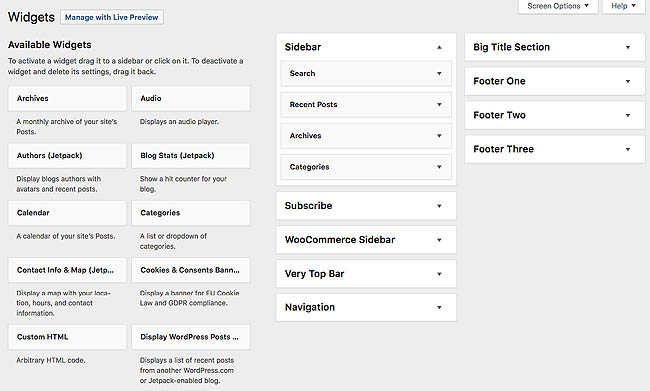
Head to Appearance Widgets in your dashboard.You see available widgets on the left and widget areas sidebars footers on the right.The interface varies slightly depending on whether your theme uses the classic or block based editor.Detailed instructions are available in the official WordPress.org documentation Manage WordPress Widgets.
For block based widgets default in newer WordPress versions:
- Go to Appearance Widgets.
- Select a widget area from the list.
- Click the plus icon to open the block inserter.
- Search for or choose a block widget classic widgets appear as Legacy options.
- Drag to rearrange or customize settings in the right sidebar.
- Click Update to save changes.
Classic interface via Classic Widgets plugin if needed:
- Drag a widget from the left panel to the desired area.
- Expand the widget to configure title content or options.
- Click Save to apply.
- Reorder by dragging remove by clicking Delete or dragging to Inactive Widgets.
Preview your site live changes appear instantly in most themes.Use the Customizer Appearance Customize Widgets for visual editing with real time previews.
Add Customize and Remove Widgets Step by Step
Adding a widget takes seconds:
- Choose the widget area sidebar footer etc.
- Select a widget from the list or inserter.
- Fill in settings like title number of items or custom text.
- Save and refresh your site to see it live.
Customize further:
- Edit titles for clarity
- Adjust display limits e.g. show 5 recent posts
- Add custom HTML for embeds or styling
- Use visibility controls plugins like Widget Options to show hide on specific pages
Remove unwanted widgets:
- Expand the widget and click Remove Delete
- Or drag to Inactive Widgets to keep for later
Reorder by dragging up or down place key widgets search newsletter at the top for maximum impact.
Popular Widgets and Plugins to Enhance Functionality
Start with built in options then expand:
- Search Widget Essential for usability
- Recent Posts Drives traffic to new content
- Social Icons or Links Builds your following
- Custom HTML Embeds videos forms or ads
Top plugins for more power:
- Classic Widgets Restores the traditional interface
- Widget Options Adds visibility rules device targeting
- SiteOrigin Widgets Bundle Modern responsive extras
Install plugins from Plugins Add New search and activate in minutes.
Best Practices for Using Widgets Effectively
Avoid clutter limit to 3 5 widgets per area for clean design.Prioritize mobile responsiveness since most visitors browse on phones.Test after every change.Update widgets when refreshing content or branding.Regularly review and remove outdated items.