
Add or Change Favicon in WordPress
A favicon is the small icon that appears in browser tabs, bookmarks, mobile home screens, and search results. It helps visitors quickly identify your WordPress site and gives your page a finished, professional look. Without one, many sites show a blank square or the default WordPress logo, which can make your website feel incomplete. Updating your favicon is quick and boosts brand recognition instantly.
This short guide shows the easiest ways to add or replace your favicon using WordPress native tools or a plugin. For official WordPress community discussion on editing favicons, see the WordPress.org support thread.
Why Add a Custom Favicon
A custom favicon delivers real benefits:
- Makes your site stand out in open tabs
- Strengthens brand identity across devices
- Creates a more trustworthy and polished appearance
- Improves mobile home screen shortcuts
WordPress uses the Site Icon feature to handle favicons automatically. Upload one square image, and the system generates the needed sizes and formats.
Quick Design Tips for Your Favicon
Use a simple, high-contrast design that works at small sizes. Start with a square PNG at least 512 by 512 pixels. Include logo elements and brand colors. Avoid tiny details that disappear when scaled down.
Easy creation tools:
- Canva for fast designs
- Favicon.io or RealFaviconGenerator.net for automatic conversion
Fastest Way: Built-in Site Icon Setting
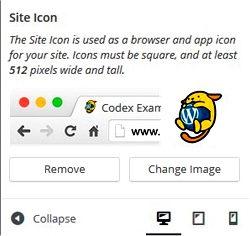
Most WordPress sites let you add a favicon without plugins.
Steps:
- Log in to your WordPress dashboard.
- Go to Appearance > Customize.
- Click Site Identity.
- Under Site Icon, select or upload a square PNG image (512 by 512 recommended).
- Publish the changes.
Alternative path (some setups):
- Go to Settings > General.
- Find Site Icon and upload your image.
- Save changes.
View your site in a new tab or incognito window to confirm the update. Clear cache if the old icon lingers.
Use a Plugin for Extra Options
Plugins add support for more formats, dark mode, or device-specific icons.
Recommended: Favicon by RealFaviconGenerator
- Go to Plugins > Add New.
- Search and install "Favicon by RealFaviconGenerator".
- Activate it.
- Go to Appearance > Favicon.
- Upload your image and generate the set.
- Save and check results.
This plugin creates icons for desktops, iOS, Android, and more automatically.
Quick Troubleshooting
If the favicon does not appear:
- Clear your browser cache
- Test in incognito mode
- Confirm the image is square and PNG
- Wait a short time for caches to refresh
Test on different browsers and phones to ensure it displays correctly everywhere.
Finish Your Site with a Custom Favicon
A favicon is a small update that makes a big difference in professionalism. Use the built-in method for speed or a plugin for more features. Log in to your WordPress dashboard now and add yours. For additional community tips, refer to the WordPress.org support thread.