
Remote Import in Softaculous
What is Remote Import?
Remote Import lets you transfer an existing installation (like WordPress, Joomla, etc.) from another server to your current server using Softaculous. It copies files and the database via FTP (or other protocols) and adds it to your Softaculous list for easy management and updates.
Note: This is for imports from a different/remote server. For installations already on the same server, use the separate local import guide instead.
Prerequisites
- Access to your Softaculous Enduser panel (usually in cPanel → Softaculous).
- FTP/SFTP/FTPS login details for the source server (where the site currently lives).
- A domain on your current server for the destination.
- Enough disk space and a database ready on the destination server.
Step-by-Step: Perform a Remote Import
1. Log into your control panel and open Softaculous Enduser area.
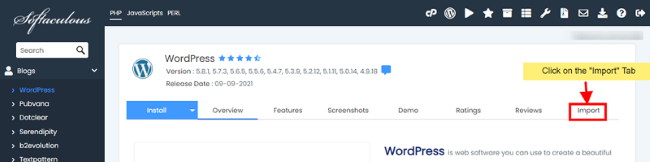
2. Click the Import tab on the main Software page.
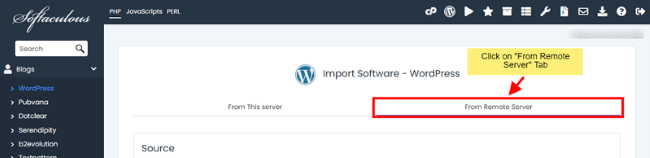
3. Switch to the From Remote Server tab.
4. Fill in the Source Details (the old server):
- Domain Name: e.g. oldsite.com (no http:// or https://)
- Server Host (optional): e.g. ftp.oldsite.com — leave blank if same as domain
- Protocol: FTP (default), SFTP, or FTPS
- Port: Usually 21 for FTP, 22 for SFTP
- FTP Username: Your source server username
- FTP Password: Matching password
- FTP Path: Relative path to web root, e.g. /public_html, /www, or /
- Installation Directory (optional): Subfolder if not in root, e.g. blog — leave blank if in root
5. Fill in the Destination Details (your current server):
- Choose Protocol: Usually FTP or the one your host supports
- Choose Domain: Where to import to, e.g. newsite.com
- In Directory (optional): Subfolder for the import, e.g. newblog — leave blank for root
- Database Name: Select or enter the database to use for the imported site
6. Click the Import button.
7. The process runs in the background. You'll get email notifications when it starts and finishes.
8. Check progress anytime in the Task List tab in Softaculous.
9. When it says Import Completed (100%), the installation appears in your Softaculous list — ready to manage, backup, update, etc.
Quick Tips & Important Notes
- Leave directory fields blank if the site is in the web root (e.g. /public_html).
- Do NOT include http:// or https:// in domain names.
- Make sure FTP credentials are correct — wrong details will cause failure.
- Import can take time depending on site size; monitor via Task List or emails.
- After import, test the site on the new domain and update any URLs/settings if needed.