
How to generate a backup and download a copy of the backup of your install using Softaculous.
Creating a Backup Using Softaculous
After logging into cPanel and clicking on the Softaculous link under the Software/Services section
You will see at the top right of the page, the All Installations link.
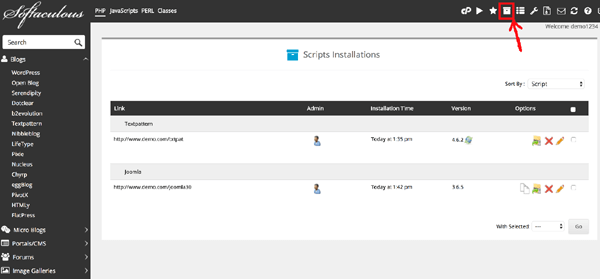
Within the list of applications, click the backup icon to the far right (which looks like a green zipped folder) of the website you want to backup.
Selecting Backup Operation(s)
Backup Directory
If you check this the entire folder will be backed up
Backup Database
If checked the database will also be backed up
Backup Note
You can add notes for each backup
Backup Location
Select a backup location from the Backup Location dropdown
Click on the Backup Installation button.
Click the Backup Installation button at the bottom of the page.You will see a progress bar appear on the screen showing you how much time is left in the backup process. When the backup is completed, you’ll see the following message:The backup was created successfully. You can download it from the Backups page.
Downloading The Backup
After backing up your program. If you click the Backups link, you’ll be taken to a page where you can download a copy of the backup created.
Here you will see a list of backups you’ve previously created. Click the File Name next to the backup that you would like to download. Your browser will then begin to download the backup file.Take note that the File Name of each backup includes the date and time the backup was generated.
You can also find the backups using either FTP or the cPanel file manager.
They will be located within the root of your account in a folder named softaculous_backups.
Once you’ve downloaded your backup locally you may want to remove the old Softaculous backups that are no longer of any use.
You can simply click on the red X beside each older backup to remove them one by one, or you can place a check mark in the column with the down arrow beside each backup, then with the With Selected: drop-down select Remove Backup and then click on Go.
Viewing Your Backups
At the top right you will see the "Backup Icon"

Here you can view any backups you have
By clicking the link Manage Backups Locations will take you to the User Settings
Which will give you different options for your backups