
Create a Staging Site
What is Staging?
The Staging feature creates a safe test copy (staging site) of your existing installation (e.g. WordPress). Use it to test upgrades, themes, plugins, or changes without affecting your live site. After testing, you can push approved changes back to the live site.
Introduced in Softaculous 4.2.8. Currently supported only for select scripts (e.g. WordPress) — more coming soon.
Prerequisites
- Softaculous version 4.2.8 or higher.
- The installation must be managed by Softaculous (if installed manually, first import it).
- Check if your script is supported (e.g. WordPress yes; others may not yet show the Stage icon).
- Access to your control panel (e.g. cPanel) and Softaculous Enduser panel.
- Email notifications enabled (recommended) to receive staging details.
Step-by-Step: Create a Staging Site
1. Log into your control panel (e.g. cPanel) and open Softaculous (via the icon or link).
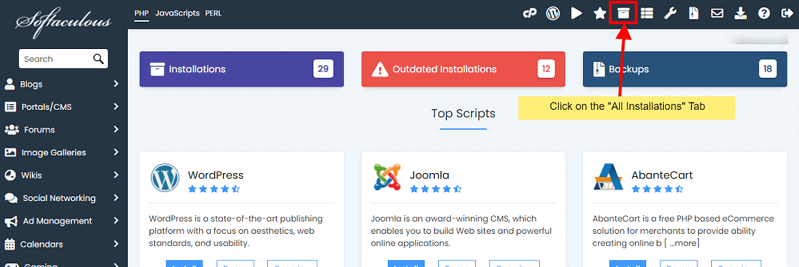
2. Go to the All Installations page to see your list of scripts.
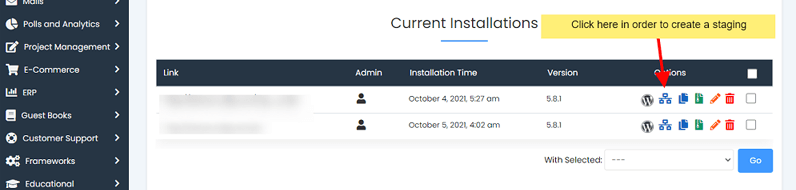
3. Find the installation you want to stage and click the Stage icon next to it.
4. On the Staging page, review the original installation details, then fill in the new staging details:
- Domain: Choose the domain (usually the same as the original).
- Directory: Enter a subfolder name, e.g.
stage,staging, ortest(recommended — do NOT leave blank to avoid overwriting live files). - Database Name: Select or create a new database for the staging copy (strongly recommended to keep live data safe).
- Other fields: Usually auto-filled or optional — check carefully.
5. Click Stage Installation.
6. Wait for the process to complete (time depends on site size — files + database are copied).
7. When finished, the staging site appears in your All Installations list. You'll get an email with details if notifications are enabled.
After Creation: Quick Tips
- Login credentials (admin username/password) are the same as the original site.
- Use the staging URL (e.g. yourdomain.com/stage) to test safely.
- Changes on staging do NOT affect live (and vice versa) until you use the separate Push to Live feature.
- If no Stage icon shows → your script isn't supported yet or needs import.
- Staging is independent — great for experimenting without risk!