
Softaculous Scripts Installation Icon
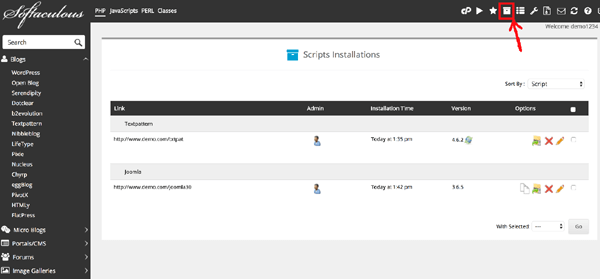
This Softaculous installation icon feature will show what scripts you have installed
Link
This will show what app have been installed and clicking the link will open a new app window
Admin
Clicking the login icon brings you to your program’s administrative login page
Installation Time
This will show what date the app was installed at
Version
This will show the version of the installed app.
You may also have a "Upgrade Button" next to Version Number, a convent way to upgrade your app
Options
This will show the options available
WordPress Management Icon
This is where you can manage different features with the installed app
Create Staging Icon
You can stage an installation to test the upgrades or the changes before applying it to the main installation and then you can push the changes to the main installation.
Clone Icon
You can clone an installation to test the upgrades or the changes before applying it to the main installation
Backup Icon
You can use the backup utility to backup both your files and database.
Edit Details Icon Icon
This feature allows you to change your program’s installation details, such as the folder where it is installed and the database configuration details
Remove Icon
The remove tool allows you to easily uninstall any program you’ve previously installed.