
How to Change Your Email Settings in Softaculous
Log into cPanel and then click the Softaculous link under Software
Email Settings
On the upper right corner of the page click on the “Email Settings” link (Envelope icon)
This will lead you to the Email Settings page
Updating Email Settings
Once you are redirected to the Email Settings page you will see the options as shown in the screenshot below
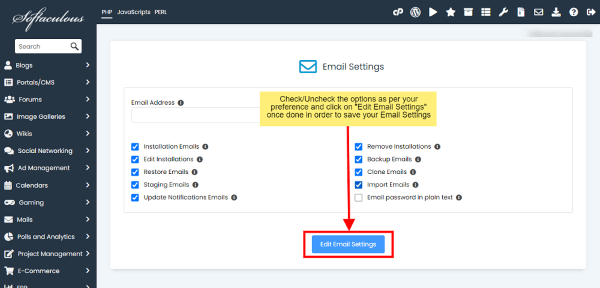
Settings
Installation Emails:
Uncheck this checkbox if you do not want to receive email notification when you install a script
Remove Installations:
Uncheck this checkbox if you do not want to receive email notification when you uninstall a script
Edit Installations:
Uncheck this checkbox if you do not want to receive email notification when you edit an installation
Backup Emails:
Uncheck this checkbox if you do not want to receive email notification when you backup an installation
Restore Emails:
Uncheck this checkbox if you do not want to receive email notification when you restore a backup
Clone Emails:
Uncheck this checkbox if you do not want to receive email notification when you clone an installation
Staging Emails:
Uncheck this checkbox if you do not want to receive email notification when you create a staging copy of your installation
Import Emails:
Uncheck this checkbox if you do not want to receive email notification when you import installation
Disable All Update Notification Emails:
Select this checkbox if you do not want to receive email notification about script updates available or plugin/themes update available (Note : This checkbox needs to be selected if you do not want to receive these emails)
Select the settings as per your preference and hit the Edit Email Settings button to save the updated settings