
Installing a Script Using Softaculous
- Log in to your cPanel.
- Navigate to the Software section and select Softaculous
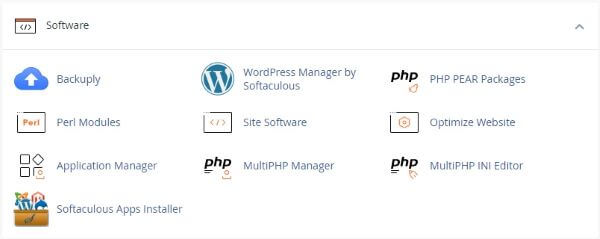
- Click the Softaculous icon or link in cPanel.
- The Softaculous panel will open, displaying a list of scripts on the left.
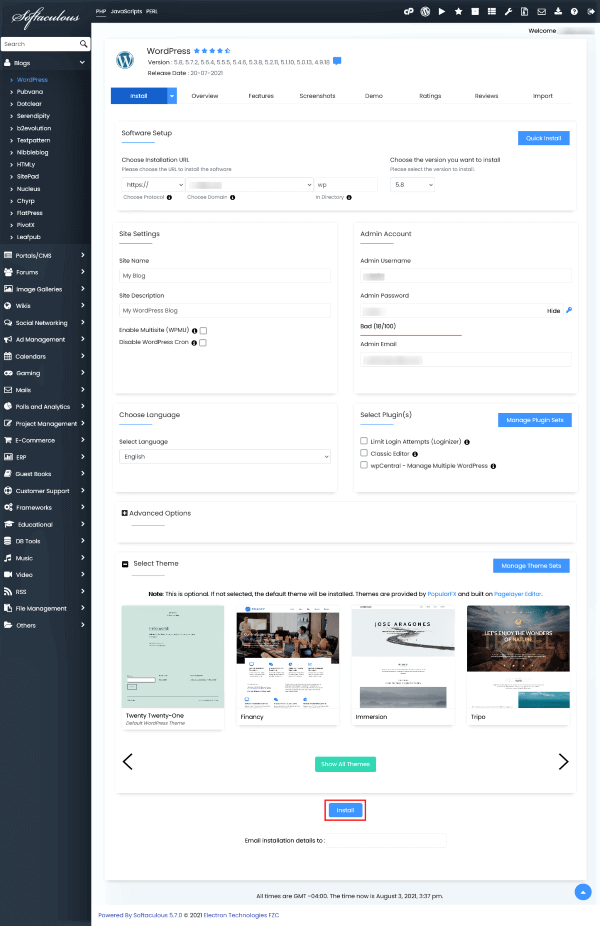
- Locate WordPress under the Blogs category and select it.
- Click the Install tab.
- Fill out the installation form with details such as:
- Protocol (e.g., http:// or https://)
- Domain name
- Directory (leave blank for root installation, e.g., http://example.com)
- Database name
- Admin login details
- Language
- Submit the form to complete the installation.
Finalizing WordPress Installation with Softaculous
- After filling in the installation details, click the Install button.
- The installation time may vary depending on the script size and other factors, so please be patient.
- Once the installation is complete, Softaculous will provide links to your WordPress site.
- Click the provided links to access either the site’s homepage or the admin dashboard, depending on your selection.
**Installing WordPress with Softaculous (Continued)** 1. Click the Softaculous icon or link in cPanel. 2. The Softaculous panel will open, displaying a list of scripts on the left. 3. Locate WordPress under the Blogs category and select it. 4. Click the **Install** tab. 5. Fill out the installation form with details such as: - Protocol (e.g., http:// or https://) - Domain name - Directory (leave blank for root installation, e.g., http://example.com) - Database name - Admin login details - Language 6. Submit the form to complete the installation.
**Installing WordPress with Softaculous (Continued)** 1. Click the Softaculous icon or link in cPanel. 2. The Softaculous panel will open, displaying a list of scripts on the left. 3. Locate WordPress under the Blogs category and select it. 4. Click the **Install** tab. 5. Fill out the installation form with details such as: - Protocol (e.g., http:// or https://) - Domain name - Directory (leave blank for root installation, e.g., http://example.com) - Database name - Admin login details - Language 6. Submit the form to complete the installation.