
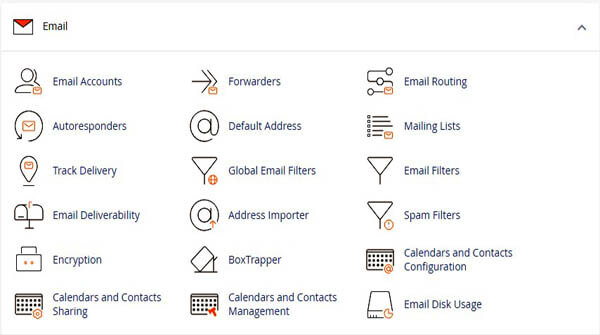
The Global Email Filter allows you to add, edit, and or remove Filters for a selected email account with cPanel
An email filter allows you to set a rule for incoming messages
Example: A message from a specific sender.
If a message matches that rule, then the system can automatically perform an action on that message
Example: Deleting the message.
We strongly recommend that you use multiple, simple filters instead of a single large filter.
Exim, the Server’s mail transfer agent, handles many small rules more efficiently than a single large rule
Create a filter
To create a new filter, perform the following steps:
1) In the Filters by Users table, click Manage Filters for the appropriate email account.
2) Click Create a New Filter.
3) Enter a name for the filter in the Filter Name text box.
4) Configure your filter’s rules and actions.
5) Click "Create"
Note: For detailed information on how to configure your filter, read cPanel's How to Configure Email Filters article.
Current Filters
To list an email account’s filters, click Manage Filters in the row of the appropriate email account.
The Current Filters table lists all the filters for the selected email account in the order the filters run.
New filters are appended to the Current Filters list, meaning they will run after pre-existing filters. You may drag and drop the filters to change the order in which the filters will run.
Edit a filter
To edit an existing filter, perform the following steps:
1) Click Edit next to the appropriate filter name.
2) Make the desired changes to the filter.
3) Click Save.
Delete a filter
To delete a filter, perform the following steps:
1) Click Delete for the appropriate filter name.
2) Click Delete Filter.
Test a filter
To test a filter, perform the following steps:
1) In the Filters by Users table, click Manage Filters next to the desired email account.
2) Enter a test email message in the Filter Test text box.
Note: Include the characters, words, and conditions that you configured for your filter.
3) Click Test Filter. The Filter Trace Results interface will appear.
The Filter Trace Results interface
The Filter Trace Results interface will display results similar to the following:
1 Sub-condition is false: not first_delivery
2 Condition is false: not first_delivery and error_message
3 Condition is false: $message_body contains Keyword
4 Return-path copied from sender
5 Sender = [email protected]
6 Recipient = [email protected]
7 Testing Exim filter file "/home/example/etc/example.com/filtertest/filter"
8
9 Headers charset "UTF-8"
10 Filtering did not set up a significant delivery
11 Normal delivery will occur
charset "UTF-8"
The results contain the following information:
• Each condition in the filter, and whether it returned a true or false result
• The Sender and the Recipient of the test message
• The filter file’s name
• The character set of the message.
• Whether the filter triggers a change in delivery or if it will deliver normally.
Filtering did not set up a significant delivery. Normal delivery will occur. - The system will deliver the message to the mailbox.
Filtering set up at least one significant delivery or other action. No other deliveries will occur. - The system will deliver the message to another mailbox or folder, or it will not deliver the message