
Install A Theme
What is the Install Theme Feature?
The Install Theme feature lets you choose and apply a beautiful theme right when installing a script (currently only for WordPress). It makes your site look great from the start — no need to install themes later manually.
You can preview theme demos before deciding. It's built into the normal installation process.
Prerequisites
- Access to your hosting control panel (e.g. cPanel) and the Softaculous Enduser area.
- You're installing a supported script — currently only WordPress themes are available.
- Follow the standard script installation steps up to the theme section.
Step-by-Step: Install a Theme with Your Script
- Log into your control panel (e.g. cPanel) and open Softaculous.
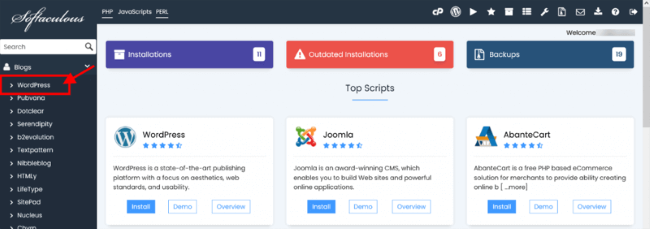
2. Find and select your script — e.g. WordPress under the Blogs category.
3. Click the Install tab and fill in the usual details:
- Choose Domain
- In Directory (optional)
- Site Name, Admin Username, Password, Email, etc.
4. Scroll down — near the bottom of the form, you'll see the Theme section with available themes listed.
5. Browse the themes:
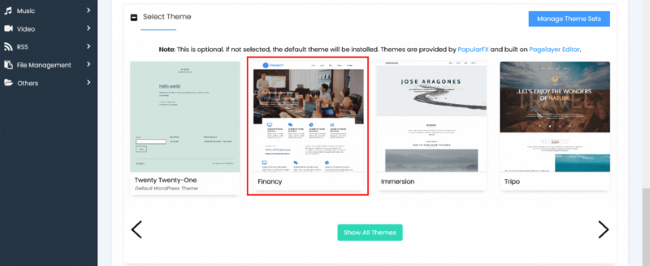
- Click on a theme thumbnail or name to view more details.
- Click the Demo button to see a live preview of how the theme looks.
6. When you find one you like, click the Select theme button on its details page.
7. You'll return to the main installation form — the chosen theme is now selected.
8. Review everything, then click the Install button at the bottom.
9. Wait for installation to finish. Your WordPress site will now have the new theme active!
Quick Tips & Notes
- Theme selection is optional — you can skip it and install the default theme, then change it later in WordPress admin.
- Currently, this feature works only for WordPress themes. Other scripts may get support in future updates.
- After install, log into your WordPress dashboard (yoursite.com/wp-admin) to customize the theme further if needed.
- This is easier and faster than manual theme upload via FTP or the WordPress dashboard.