
Softaculous Edit Settings Icon
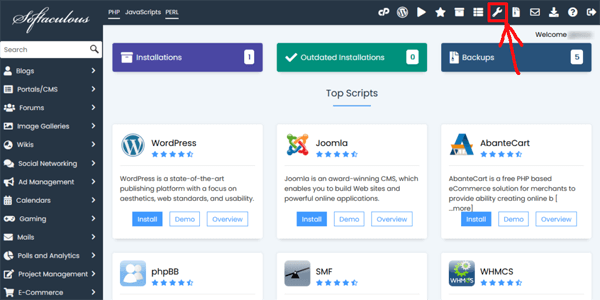
User Settings
WordPress Plugin / Theme Sets Icon
Shows what Themes or Plugins are installed
Choose Language
Choose Your Preferred Language
Timezone
Set your desired time zone
Sort domains alphabetically Check Box
If selected then the list of domains under the Choose Domain drop down menu on the install form will be sorted alphabetically
Disable Backups before Auto Upgrade Check Box
If selected, backups will not be performed before upgrading installations or plugins and themes.
Note: Make sure you have backups which you can use in case the upgrade fails.
Customize theme Check Box
If checked then Softaculous will use the theme colors selected. If you want to reset the theme to default just uncheck the checkbox and save the settings
Disable Softaculous Features suggestion Check Box
This will disable Softaculous features suggestion messages
Backup Locations
This shows the default backup location
Add Backup Location
This will let you add a custom backup location