
Push to Live in Softaculous
What is Push to Live?
The Push to Live feature lets you safely apply changes from a staging (test) site back to your main live site. After testing upgrades, themes, plugins, or edits on staging, use this to push approved changes without manual work or risk. Introduced in Softaculous 4.2.8 — currently available only for select scripts (more coming soon).
Prerequisites
- You must already have a staging site created for the installation (see the Create Staging guide).
- The original installation must be managed by Softaculous (if installed manually, first import it).
- Your script must be supported for staging/push (e.g. WordPress yes; check if the Push to Live icon appears).
- Access to your control panel (e.g. cPanel) and Softaculous Enduser panel.
- Email notifications enabled (recommended) to get confirmation details.
Step-by-Step: Push Staging Changes to Live
1. Log into your control panel (e.g. cPanel) and open Softaculous (via the icon or link).
2. Go to the All Installations page to view your list of scripts.
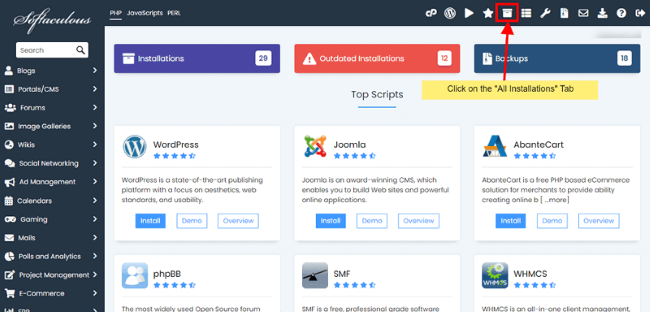
3. Find the staging installation (the test copy) and click the Push to Live icon next to it.
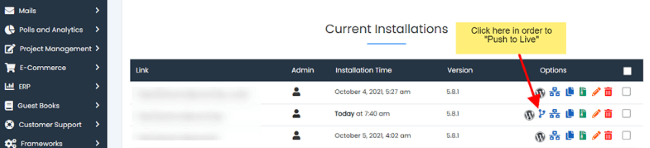
4. On the Push to Live page, review the details of both staging and live sites.
5. Choose your push method:
- Default: Pushes changes automatically with standard settings (recommended for most cases).
- Customize: Check options like:
- Overwrite files → replaces live files with staging files
- Push full database → replaces the live database entirely with staging database
6. Click the Push to Live button.
7. Wait for the process to complete (time depends on changes — files/database are synced).
8. When finished, the live site updates with staging changes. You'll get an email if notifications are on.
9. (Optional) After push, use the Set this installation as live option to mark it complete and remove the Push to Live icon.
Quick Tips & Important Notes
- Login credentials (admin username/password) remain the same as the original/live site.
- Only push after thorough testing — this overwrites live content!
- If no Push to Live icon appears → script not supported yet or no staging exists.
- Great workflow: Stage → Test → Push to Live → Safe updates!
- Backup your live site first (manual or automated) before pushing.