
Clone an Installation in Softaculous
What is the Clone Feature?
The Clone feature lets you quickly duplicate an existing Softaculous installation (e.g. WordPress, Joomla, etc.) to a new location — usually a subdirectory like "/clone" or "/test".
It's perfect for testing upgrades, themes, plugins, or changes without risking your live site. Available since Softaculous 4.2.8, but only for certain supported scripts.
Prerequisites
- Softaculous version 4.2.8 or higher.
- The installation must already be managed in Softaculous and be on the supported scripts list.
- If your site was installed manually (not via Softaculous), first import it.
- Access to your control panel (e.g. cPanel) and Softaculous Enduser area.
- Email notifications enabled (recommended) to get clone details.
Step-by-Step: Clone an Installation
1. Log into your control panel (e.g. cPanel) and click the Softaculous icon/link to open the Enduser panel.
2. Go to the All Installations page (shows your list of installed scripts).
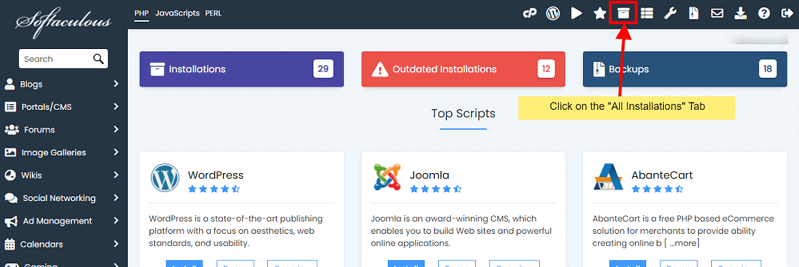
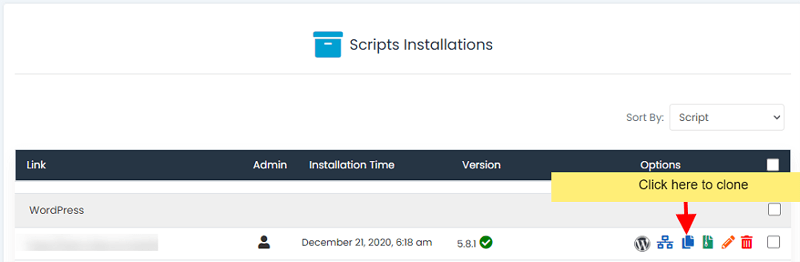
3. Find the installation you want to clone and click the Clone icon next to it.
4. On the Clone page, you'll see details of the original installation. Fill in the new details for the clone:
- Choose Domain: The domain where the clone will live (can be the same as original).
- In Directory: Enter a subdirectory name, e.g.
clone,test, orstaging(leave blank for root — but usually use a subfolder!). - Database Name: Choose or create a new database for the clone (recommended to avoid overwriting live data).
- Other fields: Usually auto-filled or optional — review as needed.
5. Click the Clone Installation button.
6. Wait for the process to finish (time depends on site size — files + database are copied).
7. When done, the clone appears in your All Installations list. You'll get an email with login/details if notifications are on.
After Cloning: Quick Tips
- Login credentials (admin username/password) stay the same as the original.
- Test upgrades, plugins, themes, or code changes safely on the clone.
- The clone is a full, independent copy — changes won't affect the original (and vice versa).
- If the Clone icon doesn't appear → the script isn't supported yet (check the supported list).