
Installing a Script with Softaculous.
Our example is WordPress which is a popular blogging script.
Login to your cPanel
After logging into your cpanel.
Find the Software / Softaculous section.
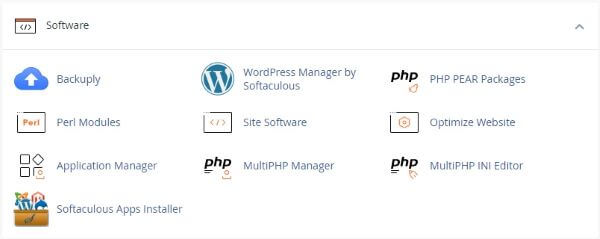
There click on the Softaculous Icon or Link.
The Softaculous Panel will open.
Choose Your Script
On the left side of you will find a list of scripts.
We are installing WordPress as our example which is in the Blogs category.
Fill in the Installation Details
Click on the Install Tab.
You will now see a form with various details.
Fill in the details like protocol, domain name, directory, database name, admin login details language, etc.
Note : If you wish to install the script on the root of the domain eg : http://example.com please leave the In Directory field blank.
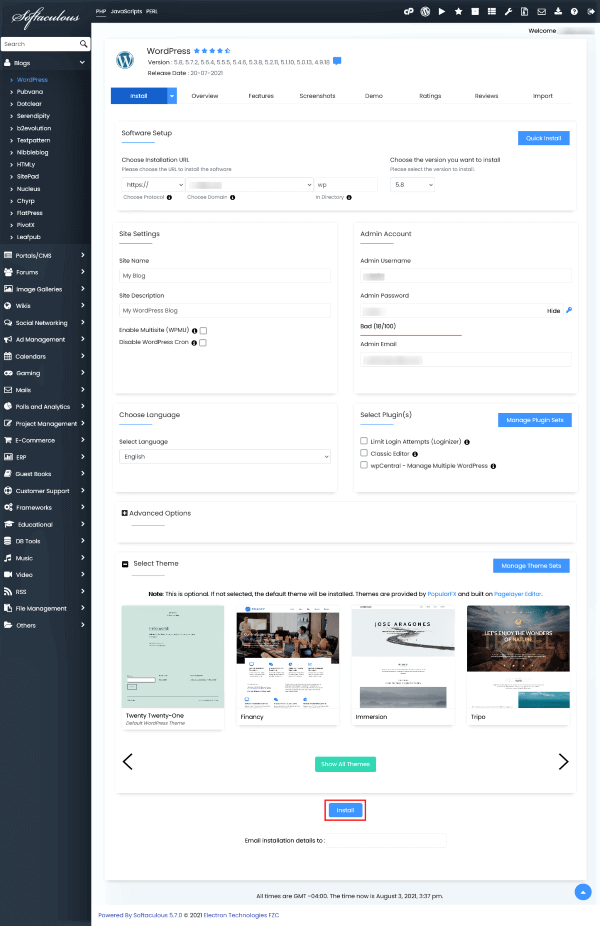
Once you are done with the details click on install button and this should do the trick. Installation time may vary in accordance to size of the script and other factors, Please be patient.
As soon as the installation is complete Softaculous will provide links to your installation.
Click on the links provided and this should redirect you directly to the site page or the admin homepage whichever you choose.